FDS on Cloud

Run your FDS fire simulations in the cloud – in hours, not days
Upload the .fds file you exported from PyroSim, BlenderFDS or any other interface, pick the FDS version and the machine size, and launch. cloudHPC splits the meshes, runs FDS in parallel and lets you follow the fire in Smokeview while the simulation is still running. You pay only for the time the machine is on.
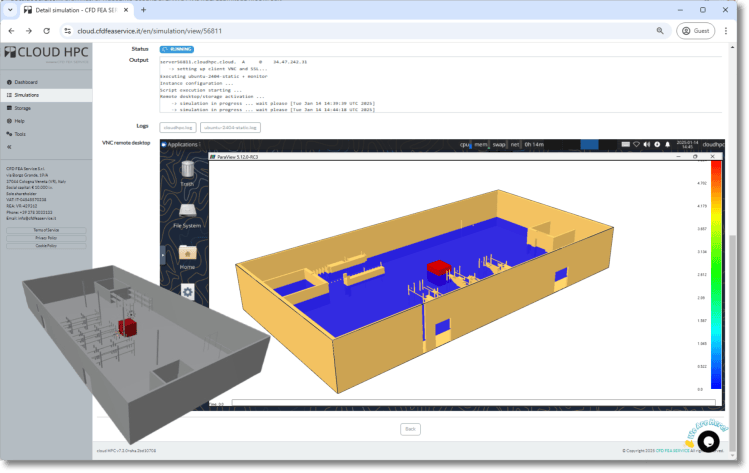
FDS is the reference for fire safety engineering. Your workstation is the bottleneck.
Fire Dynamics Simulator, developed by NIST, is a large-eddy simulation (LES) code for low-speed flows focused on smoke and heat transport from fires. A performance-based design needs several fire scenarios, fine meshes and long simulated times: on a desktop PC that means days per run. On cloudHPC each scenario gets its own machine, sized for its meshes.
Any pre-processor
- Upload the plain .fds file – no installation, no licence
- PyroSim: export with File > Export > FDS File;
MPI_PROCESSis respected - BlenderFDS, CPI Win FSE or a text editor work just as well
- Auxiliary files (.dat, .bdf, .txt, .py, PyroSim geometry) are kept
Parallel set-up done for you
- One MPI process per
&MESH, spare vCPU used as OpenMP threads - A single
&MESHis split automatically into one piece per core; the original is kept as backup - BlenderFDS line breaks, Windows line endings and file names with spaces are fixed
- Pre-run checks in the log: mesh order, too many meshes, ramps longer than
T_END
Every FDS version
- All releases from FDS 6.7.0 to the latest
- The nightly build, to test fixes before they are released
- Rerun old projects with the exact version they were approved with
- FDS+Evac on FDS 6.7.7 and earlier legacy
Watch the fire while it runs
- Progress shown as simulated time over
T_END - Open Smokeview on a remote desktop and see the results live, during the run
- Sync partial results to your storage at any moment
- Stop cleanly with a
.stopfile, now or at a given simulated time
Long runs, restarts and spot machines
- Set
DT_RESTARTon&DUMPand the run resumes from the last restart file RESTART=.TRUE.is added automatically: just relaunch in the same folder- Ready for preemptible (spot) machines to cut the cost of long runs
Results ready to use
- All outputs packed in a single
FDS.tar.gz - Every .csv also converted to .xlsx for your report
- Extract into the PyroSim results folder to use its results viewer
- Or post-process in the cloud with Smokeview, without downloading anything
What changes compared with running FDS on your PC
Your model and your workflow stay the same. What changes is how many scenarios you can run, and how soon you get the results.
| Step | FDS on a workstation | FDS on cloudHPC |
|---|---|---|
| Set-up | Install FDS and MPI, keep versions aligned with your pre-processor | All versions from 6.7.0 to the latest, pre-installed and maintained |
| Parallel run | Split meshes by hand and match MPI processes to your cores | Single meshes split automatically; MPI and OpenMP set from the vCPU you choose |
| Scenarios | One fire scenario after another on the same machine | Every scenario on its own machine, at the same time |
| Hardware | Limited by your cores and RAM, and busy for days | Up to 224 vCPU and 8 GB of RAM per vCPU, only while the run lasts |
| Long runs | A reboot or power cut can cost days of work | Automatic restart from the last restart file |
| Post-processing | Copy gigabytes of results before opening Smokeview | Smokeview on a remote desktop, on the same storage, even during the run |
How many vCPU does my FDS model need?
FDS runs one MPI process per mesh, so the number of meshes sets the number of cores. Keep each mesh above 15,000–20,000 cells and the meshes of similar size, so the load stays balanced.
Rule of thumb
- highcpu, standard, highmem, hypercpu: vCPU = number of meshes × 2
- highcore, hypercore: vCPU = number of meshes
- With
MPI_PROCESS, count the mesh groups instead of the meshes, in ascending order
Which RAM type
- Start on highcpu, the cheapest: extra RAM does not make FDS faster
- Move to standard, then highmem, only after a memory error
- With VISIBILITY or radiative heat flux devices, hypercpu or hypercore give faster runs
More details, with examples, in the FDS scalability guide and in our MPI and OpenMP webinar.
Built by fire engineers, for fire engineers
CFD FEA SERVICE uses FDS every day on its own fire safety engineering projects, and runs them on the same platform you use.
Expert support
Our team works with FDS on real projects, is a corporate member of SFPE and stays in touch with the NIST developers. We can help you size and debug your runs.
Pay per use
No subscription and no annual licence: you pay per vCPU hour, only while the machine runs. Check the cost in advance with the price calculator.
Automate with the API
Launch and monitor batches of scenarios from your own scripts through the cloudHPC API. The platform is ISO 27001 certified.
Smokeview in your browser
Open a secure remote desktop on a dedicated machine and load your case in Smokeview: slices, boundary files, isosurfaces and 3D smoke, with no download and no local install. The desktop reads the same storage as the simulation, so you can check smoke layers and visibility while FDS is still running.
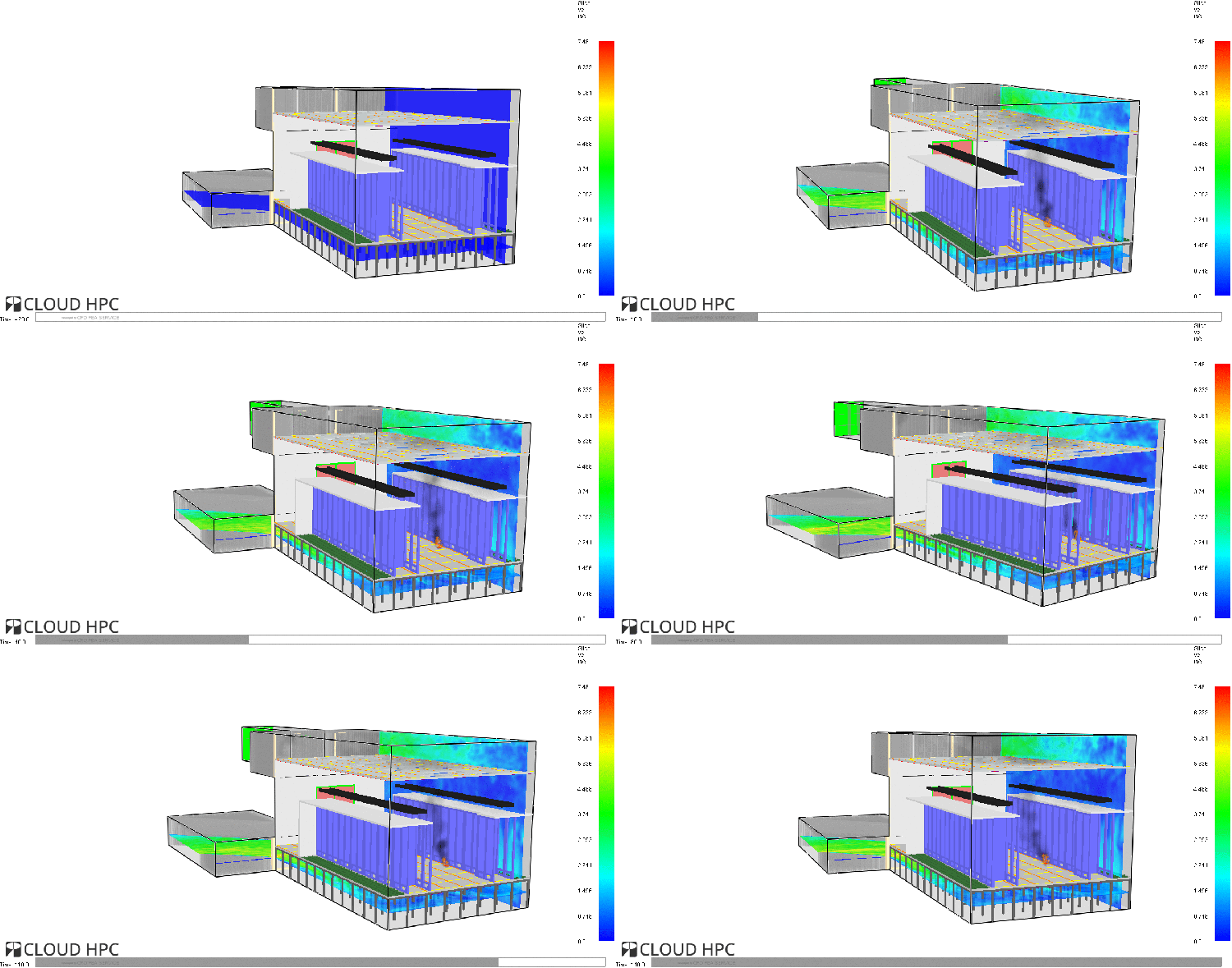
Your first FDS run in six steps
- Register on cloudHPC and activate your account.
- Export the .fds file from your pre-processor.
- Upload it, with any auxiliary files, to a storage folder.
- Choose the FDS version, the vCPU and the RAM type.
- Launch and follow the run, or watch it live in Smokeview.
- Download FDS.tar.gz or post-process it in the cloud.
Run your next fire scenario in the cloud
Create your account and get 300 free vCPU hours to try FDS on your own model.